Skip to content
Summa Lai
Never Stop Learning, Building a Little Wiki…
Life is like riding a bicycle. To keep your balance, you must keep moving. But DON'T move too fast.
  • Home
  • Apple
  • Cloud
  • Linux
  • Microsoft
  • Networks
  • Solutions
  • TOOLS
  • Log In
  • About Me

How to Create a Local Account While Setting up Windows 10

Posted on February 27, 2024February 27, 2024 by Summa Lai

Yes, Microsoft has removed the option to create a local account from the Windows 10 installation wizard, but there are ways to continue skipping the use of the Microsoft account.

Windows 10 users no longer has the option to create a local account during the out-of-box experience (OOBE) setup, but there’s a workaround if you don’t want to use a Microsoft account. Although you have been able to choose between a Microsoft account or traditional local account during the setup process, the experience has always been intended to lure users into selecting the Microsoft account option.

The reasoning behind this approach is that Microsoft wants you to use the cloud-based account system to take advantage of additional benefits, such as access to many of the company’s online services, the ability to sync settings and files across devices, as well as manage various aspects of your devices, including updating personal information, easily reset the account password, and find your computer if it’s lost or stolen.

However, there are still people who prefer the security, privacy, and simplicity of a local account, which was one of the reasons the option was available during the setup process. But since version 1903 (May 2019 Update), the choice has disappeared entirely.

If you’re among those who use the Windows 10 and prefer the offline account type, the next time that you reset or set up a new device, or perform a clean installation, you will have to use a workaround if you want to create a local account.

To create a local account within the out-of-box experience for Windows 10 Home, while in the account setup stage, use these steps:

1, Disconnect the computer from the network. If you’re using an Ethernet connection, disconnect the cable from the back of your computer. If you’re using a wireless connection, turn off the adapter using the shortcut on your laptop. (In the case that there’s no way to disable the Wi-Fi adapter, then press “Shift”+ “F10” and then use below command to disable the Wi-Fi. When done, restart your computer, and you should be able to create a local account.

Before you enter the command to disable WiFi, you must know the correct name of the wireless interface that you want to disable. So, first, enter the following command to view the names of your network interfaces:

netsh wlan show interfaces

Now, type the below command which is used to disable WiFi in Windows 10. Most likely, the name could be defaulting as “Wi-Fi”.

netsh interface set interface name=”Wi-Fi” admin=DISABLED
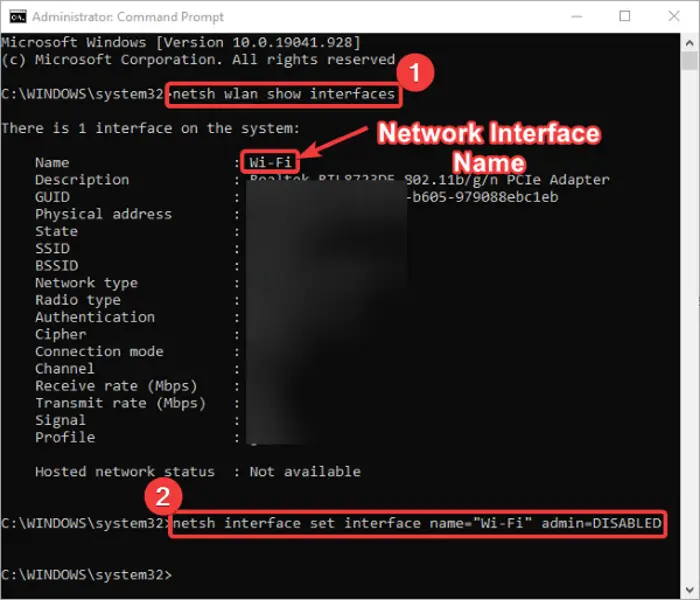
Once you complete the steps, and you’re back on the desktop, reconnect the device to the network and enable the Wi-Fi, and now you are ready to use Windows 10 with a local account.

netsh interface set interface name=”Wi-Fi” admin=ENABLED

Ref: How to create a local account while setting up Windows 10 Home | Windows Central

Posted in Microsoft Family, Windows 7/8/10/11 Tagged Create a Local Account when installing Windows 10, Create a Local Account While Setting up Windows 10

Post navigation

← How to Use WinSCP with SUDO Permission
How to Change Default Permissions of /var/log on Linux →

Categories

  • About Me (1)
  • Apple (24)
    • Apple Devices (18)
    • iCloud (3)
    • Mac OS (7)
  • Certifications (21)
    • CCNP (21)
    • CompTIA A+ (2)
    • CompTIA Network+ (9)
  • Cloud (80)
    • AWS (2)
    • CloudFlare (2)
    • Google Cloud (19)
    • JumpCloud (1)
    • Microsoft 365 (49)
    • Oracle (1)
    • RADIUS (2)
  • Linux Family (57)
    • Apache (20)
    • CentOS (23)
    • PHP (3)
    • Putty / WinSCP (1)
    • Shopify (2)
    • WordPress (18)
  • Microsoft Family (537)
    • Autopilot / Intune (52)
    • Azure (94)
    • Compliance Portal (3)
    • Dymanic (2)
    • Exchange (13)
    • Hyper-V (1)
    • Microsoft Defender (6)
    • Microsoft Office (171)
    • Power BI (94)
    • PowerShell (15)
    • SQL (20)
    • Surface (3)
    • Teams / SharePoint (20)
    • Windows 7/8/10/11 (133)
    • Windows Servers (71)
  • Networks (122)
    • Adobe (1)
    • Darktrace (2)
    • Firewalls (21)
    • Google (12)
    • Hardware (21)
    • Meraki (1)
    • Mobile phones (5)
    • NordLayer (1)
    • Others (24)
    • Palo Alto (11)
    • Phones (1)
    • Router/Switch (26)
    • Ubiquiti (1)
    • Wi-Fi (9)
  • Oversea Living (26)
  • Solutions (51)
    • 1Password (2)
    • Adobe (2)
    • BI and Reporting (5)
    • BoardEffect (1)
    • eCommerce (8)
    • Forensics / Investigation (1)
    • Google Workspace (4)
    • IT Management (2)
    • KnowBe4 (1)
    • Password Management (5)
    • Project Management (2)
    • QuickBooks (1)
    • Sage (3)
  • Tools (15)
    • Atera (2)
    • Chocolatey (1)
    • Google (4)
    • PatchMyPC (3)
  • Travels (2)
  • Uncategorized (13)
  • VMware (2)

Recent Posts

  • How to View the Attribute Editor in Active Directory September 5, 2025
  • How to Unlock a User in BoardEffect September 4, 2025
  • How to Insert a Table of Contents with Office 365 June 19, 2025
  • Password Expiration Notification for Microsoft 365 Users May 1, 2025
  • How to Fix “Your organization does not allow external forwarding.” Microsoft 365 April 9, 2025
  • How to Check the Windows 11 Version and Build March 25, 2025
  • How to Remove Previously Granted Access to a User’s OneDrive February 13, 2025
  • How to Create a Milestone with Project for The Web February 4, 2025
  • How To Convert a .CRT Certificate into a .PEM or .PFX Format January 6, 2025
  • How to Deploy 1Password SCIM Bridge on Azure Container Apps January 2, 2025

Recent Comments

  • buy CBD on SUMMA LAI – NEVER STOP LEARNING

Archives

  • September 2025 (2)
  • June 2025 (1)
  • May 2025 (1)
  • April 2025 (1)
  • March 2025 (1)
  • February 2025 (2)
  • January 2025 (2)
  • December 2024 (2)
  • November 2024 (3)
  • October 2024 (4)
  • September 2024 (3)
  • August 2024 (7)
  • July 2024 (7)
  • June 2024 (4)
  • May 2024 (4)
  • April 2024 (1)
  • March 2024 (5)
  • February 2024 (7)
  • January 2024 (12)
  • December 2023 (7)
  • November 2023 (10)
  • October 2023 (8)
  • September 2023 (8)
  • August 2023 (6)
  • July 2023 (12)
  • June 2023 (15)
  • May 2023 (17)
  • April 2023 (18)
  • March 2023 (14)
  • February 2023 (17)
  • January 2023 (21)
  • December 2022 (17)
  • November 2022 (20)
  • October 2022 (18)
  • September 2022 (17)
  • August 2022 (17)
  • July 2022 (17)
  • June 2022 (18)
  • May 2022 (12)
  • March 2022 (11)
  • February 2022 (18)
  • January 2022 (22)
  • December 2021 (26)
  • November 2021 (22)
  • October 2021 (23)
  • September 2021 (24)
  • August 2021 (12)
  • July 2021 (14)
  • June 2021 (20)
  • May 2021 (23)
  • April 2021 (28)
  • March 2021 (24)
  • February 2021 (27)
  • January 2021 (28)
  • December 2020 (31)
  • November 2020 (13)
  • October 2020 (4)
  • September 2020 (3)
  • August 2020 (7)
  • July 2020 (23)
  • June 2020 (24)
  • May 2020 (21)
Copyright 2024, Privacy Policy
  • SUMMA LAI – NEVER STOP LEARNING