When you open an object in the Active Directory Users and Computers console, you can see a couple of information tabs. These tabs include the user account’s properties, user attributes, and AD attributes.
However, there are a lot of hidden attributes you don’t see. In order to see all the attributes of the object, you need to perform one essential step and discover a separate attribute editor tab.
In the ADUC View menu, click on Advanced Features.
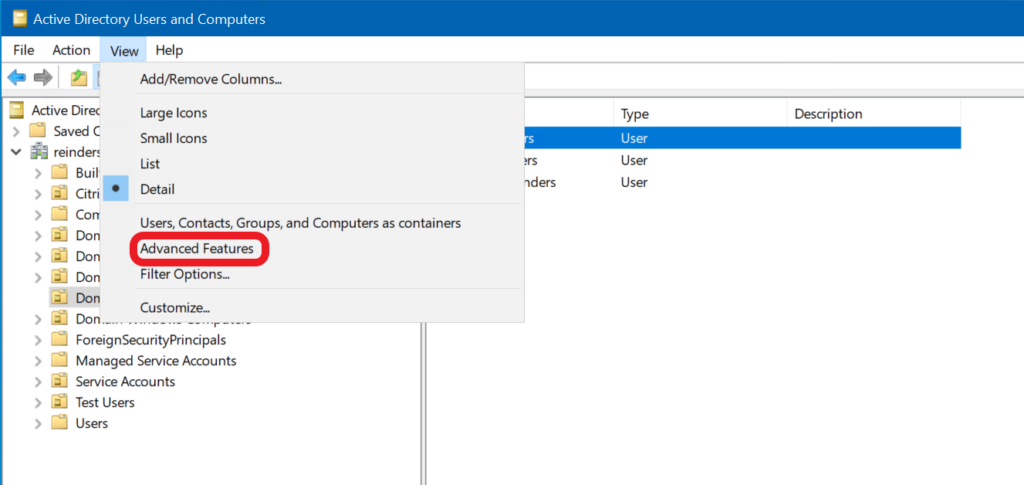
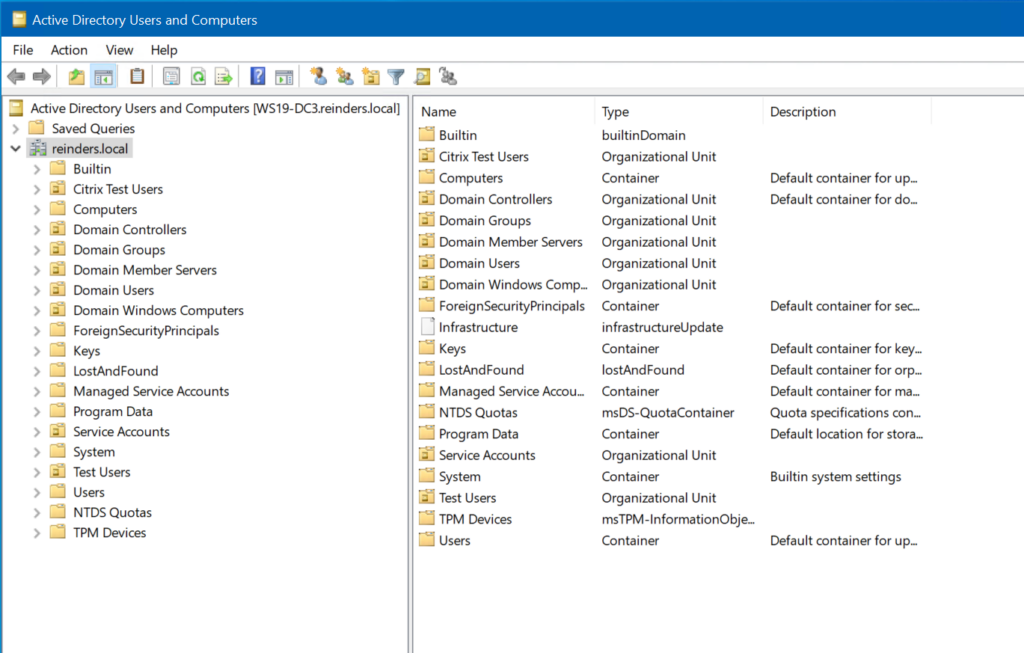
After switching on Advanced Features, you can see that other organizational units (OUs) and containers are also visible.
With that enabled, I can go back to Billy Reinders’s record, and see the new Attribute Editor tab.
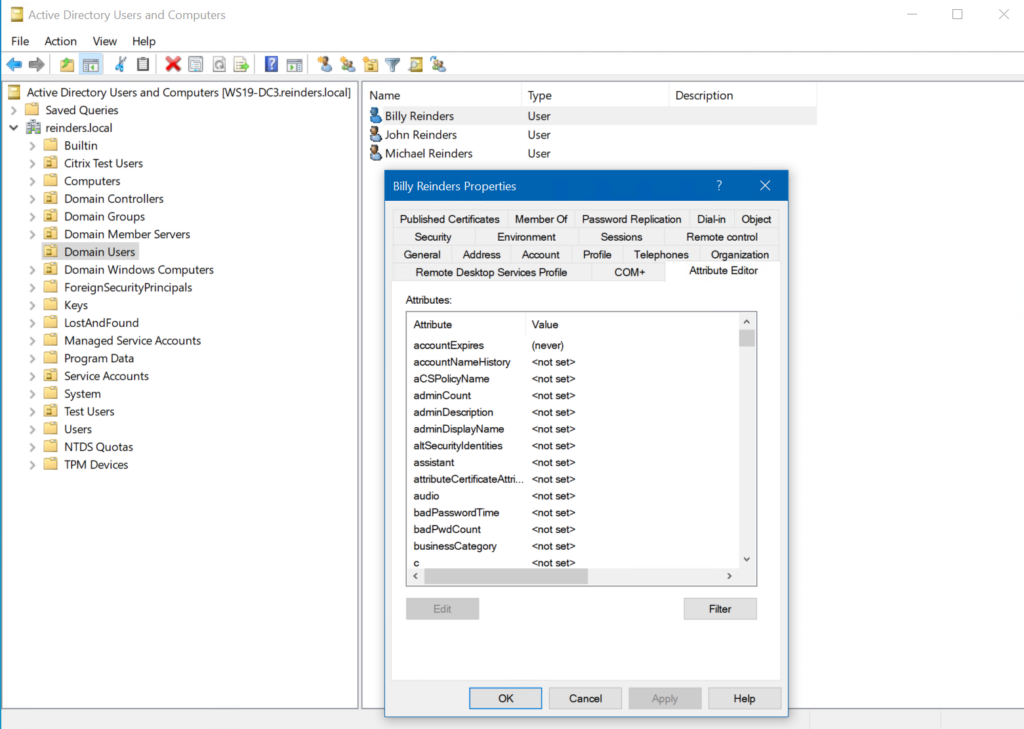
What you can see with the Attribute Editor in ADUC
Once you’ve enabled the Attribute Editor tab, you can fully access and edit almost every attribute (of which there are close to 250) of every object in Active Directory, especially the user’s properties. Here is a subset of all the attributes of the user class you can see:
- aduser username
- cn (Canonical Name)
- samaccountname
- First Name
- Last Name
- Password
- Group Member tab
- userprincipalname (UPN)
- Phone Number
- Job Title
- Department
- Profile
- Smart Card details
- Device details
Let’s go back to Billy’s account. You can now see some examples of other object attributes that are now available.
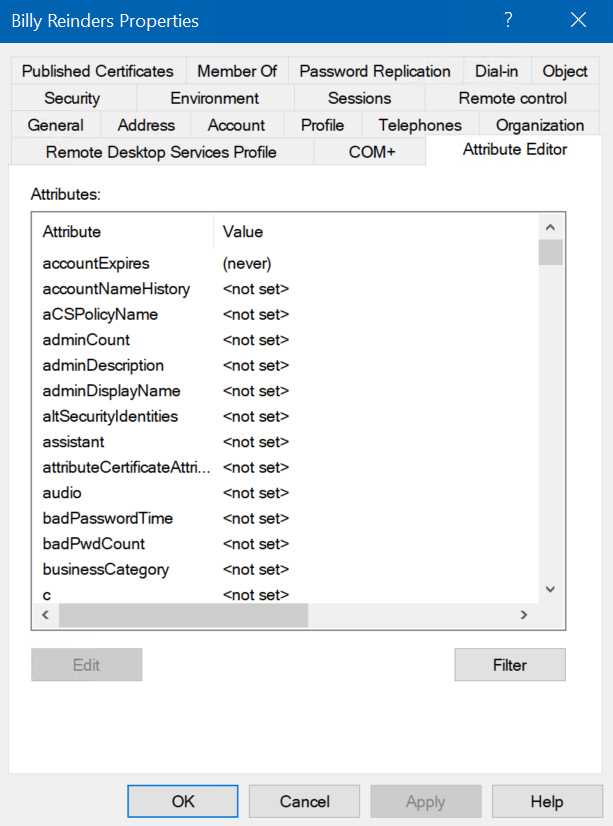
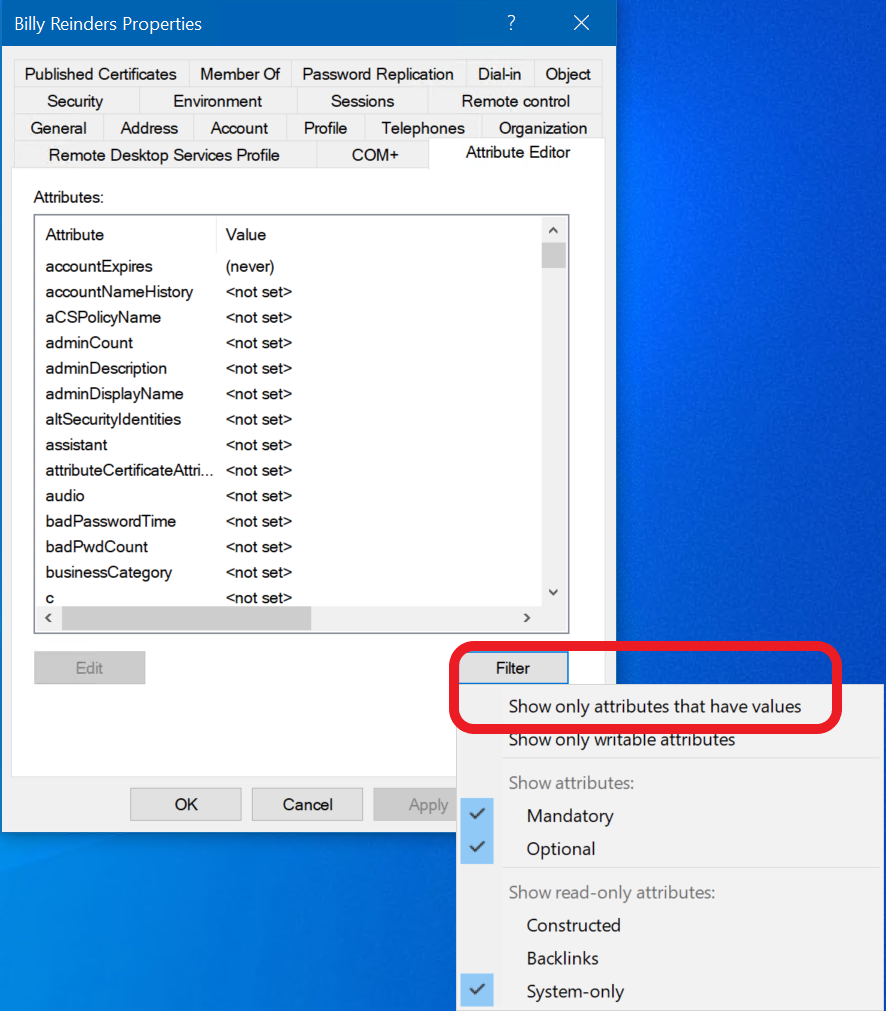
The majority of attributes are unused, or, ‘<not set>’. We can filter those out to make things a little cleaner. Click the Filter button and then click Show only attributes that have values.
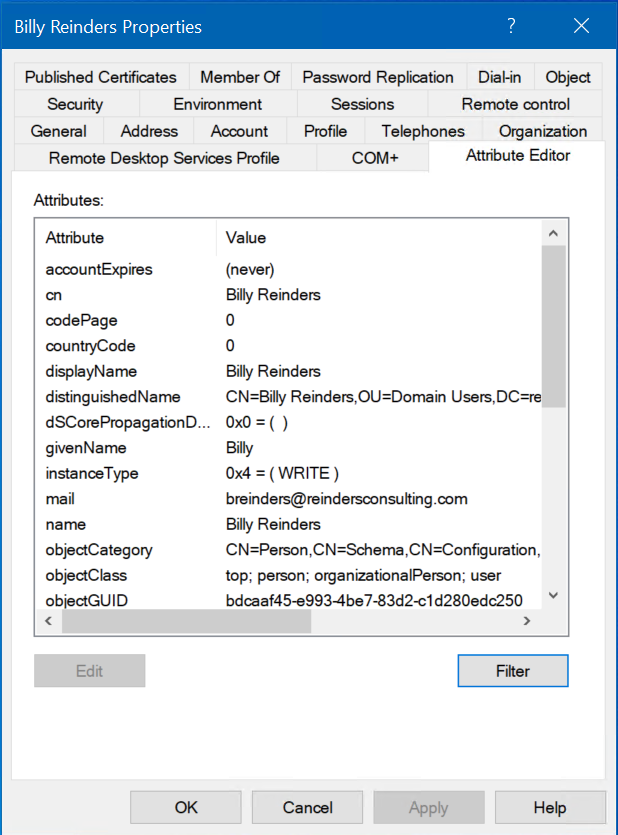
Then, we have a much clearer view of Billy’s attributes.
As an example of what it looks like when we open an attribute for editing, here is Billy’s ‘objectGUID’.
Ref: How to Use the Attribute Editor in Active Directory | Petri